

Structuring layouts with the new Section element
Categories: Development
Layout files in the speedata Publisher can get long. Really long. A product catalog with conditional page types, fallback logic, index generation, and a dozen different record types easily grows to a few hundred lines of XML. And at that point, scrolling through the file becomes a chore.
I have been wanting a way to organize layout code into logical groups for a while — something like regions or sections that you can collapse and navigate. The problem: any new element in the layout language usually does something. It affects the output, it changes behavior, it needs to be documented and tested and maintained.
So I added an element that does nothing.
The Section element
<Section> is a new element in the speedata Publisher layout language. It has one attribute: name. It wraps other elements. And that is all it does.
<Layout
    xmlns="urn:speedata.de:2009/publisher/en"
    xmlns:sd="urn:speedata:2009/publisher/functions/en">

  <Section name="Font definitions">
    <LoadFontfile ... />
    <DefineFontfamily ... />
  </Section>

  <Section name="Page types">
    <Pagetype name="default" test="true()">
      ...
    </Pagetype>
  </Section>

  <Section name="Data processing">
    <Record element="catalog">
      ...
    </Record>
  </Section>

</Layout>
The speedata Publisher simply ignores <Section> during processing. It does not create a scope, it does not affect variables, it does not change page handling or anything else. The PDF output is identical whether you use sections or not.
So why bother?
Code folding and outline
The real benefit shows up in the editor. The new vscode-speedata extension for Visual Studio Code understands <Section> elements and uses them for two things:
Code folding. You can collapse a section and hide everything inside it. When your layout has 2000 lines and you are working on the data processing part, you can fold away the font definitions, the page types, and whatever else you are not interested in right now.
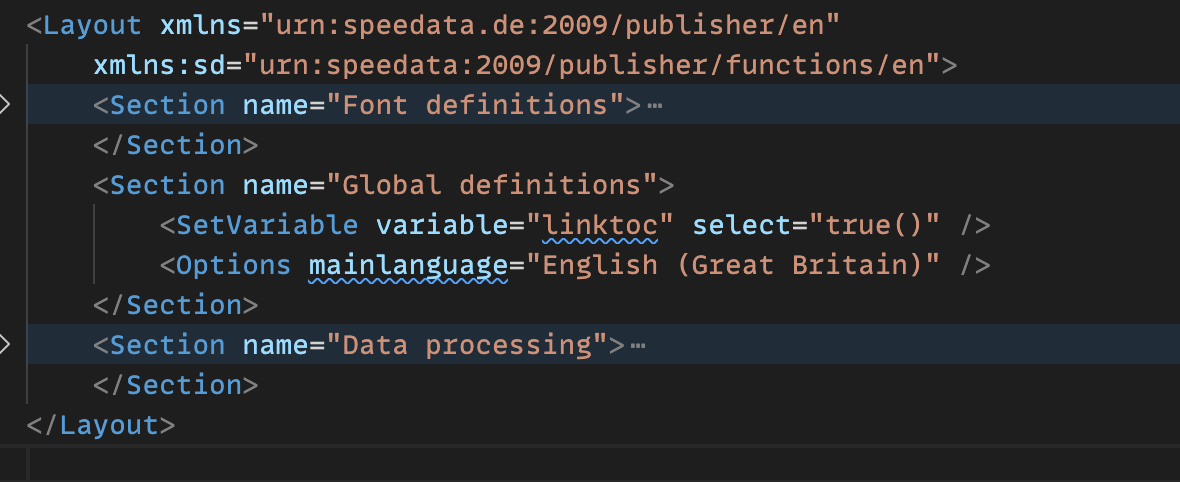
Outline symbols. The VS Code outline panel (and the breadcrumb bar) shows your sections as a navigable tree. Instead of scrolling through the file looking for the right <Record> element, you click on “Data processing” in the outline and jump right there.
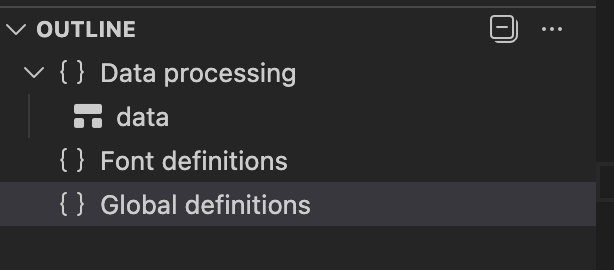
This is a small thing, but it makes a noticeable difference when you work with larger layouts. You spend less time navigating and more time actually editing.
The speedata-vscode extension
The Section support is part of the new vscode-speedata extension, which replaces the older RedHat XML mode. Besides sections, it brings proper syntax support, validation, and autocomplete for the speedata Publisher layout language. If you use VS Code for editing your layouts, it is worth installing.
Do I need to restructure my layouts?
No. <Section> is entirely optional. Existing layouts work exactly as before. You can add sections gradually, wherever you feel they help — or not at all. There is no performance cost and no behavioral change.
If you do want to add them, I would suggest starting with the obvious top-level groups: font definitions, page types, and record handlers. That alone gives you a nice outline and makes folding useful immediately.
The Section element is available in the current development version of the speedata Publisher. The vscode-speedata extension is available on the VS Code Marketplace.